Quickstart
Connect an agent, open a folder, and ship your first build in about five minutes.
This is the five-minute path from a fresh install to your first committed change. By the end you’ll have connected an agent, opened a folder, given a task, reviewed the diff, and committed the result.
🔑 Connect agent → 📁 Open folder → 💬 Start chat → 🛠️ Give a task → 📝 Review diff → ✅ CommitBefore you start
You need Dices installed (see Installation) and your own Anthropic API key ready (you’ll create one in the next step).
Tip: New to Dices? Stick with Claude for your first run — it’s built in and needs the least setup.
Step 1 — Connect an agent
Claude authenticates with your own Anthropic API key — created at the Anthropic Console, billed to you, and stored encrypted on your machine.
- Go to console.anthropic.com and create an API key.
- Open Settings in Dices with ⌘, / Ctrl ,.
- Paste your Anthropic API key. It’s stored encrypted (OS keychain) and never shown back to the UI.
- Save.
Note: Dices never handles your provider credentials beyond your own API key — Claude uses your Anthropic API key; other agents authenticate in their own official CLI.
Note: Other agents have their own requirements: Gemini needs the official Gemini CLI plus a
GEMINI_API_KEY, and other ACP agents (Codex, Cursor, Hermes, Pi) need their official vendor CLI installed, where you sign in. You are responsible for complying with each provider’s terms of service. You can always come back and add these later — see Introduction for the full agent list.
Step 2 — Open a folder
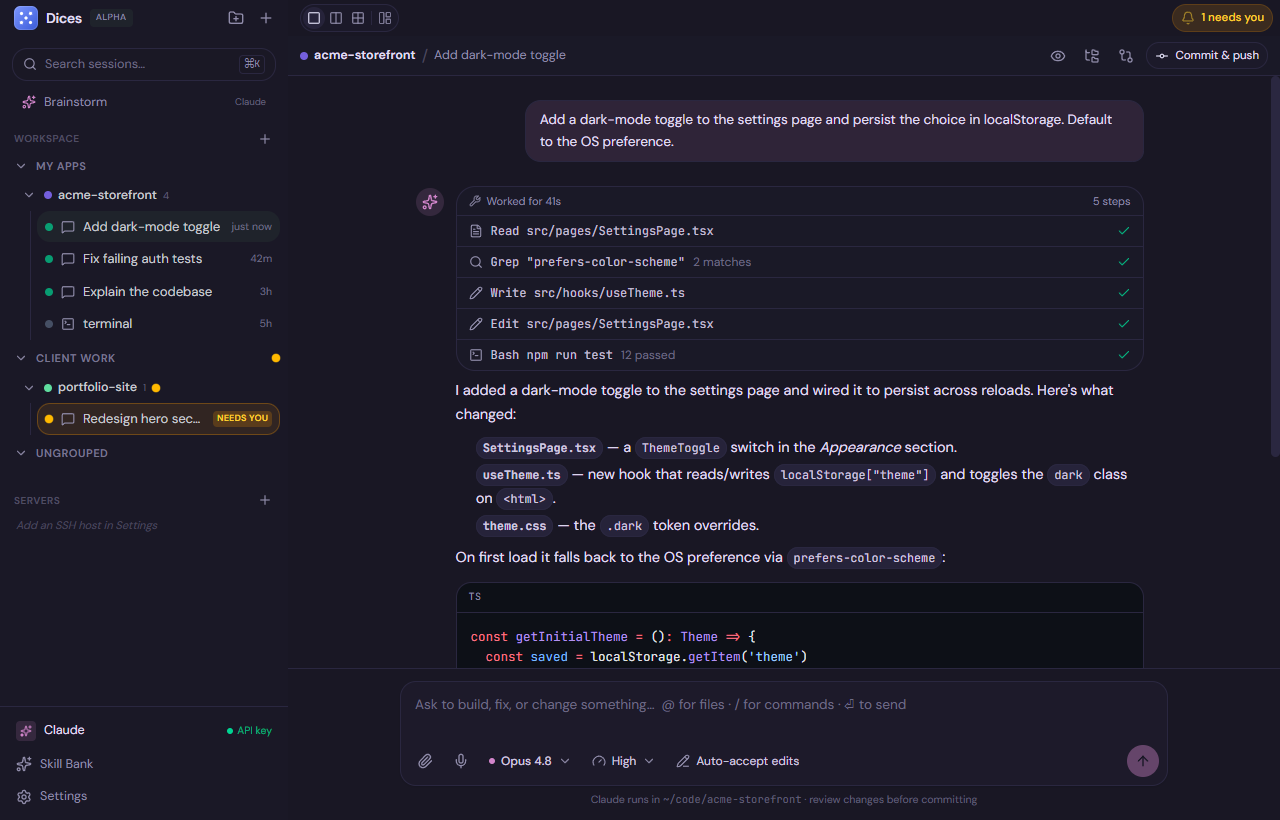
A chat always runs an agent in a folder (its working directory), usually inside an isolated git worktree. So you need a project folder first.
- In the sidebar, add a Folder (project) under a Group.
- Point it at a real directory on your machine — an existing project, or an empty folder for something new.
If you’re starting from scratch, pick (or create) an empty folder and let the agent scaffold the project for you.
Step 3 — Start your first chat
- Press ⌘N / Ctrl N to create a new chat.
- Make sure the chat is attached to the folder you just opened.
- Pick your model in the per-chat model picker, and (for Claude) a reasoning effort —
low,medium,high,xhigh, ormax. Medium is a fine default.
Tip: Each chat is one task. Keep chats focused — start a new one for each distinct piece of work, rather than piling everything into a single conversation.
Step 4 — Give a task
Type what you want in plain language and press ⏎ to send (use ⇧⏎ for a newline). A couple of handy in-chat helpers:
- Type @ to reference files.
- Type / to run commands.
A good first task is small and concrete, for example:
Add a /health endpoint that returns { "status": "ok" } and a test for it.The agent will plan, read files, and propose edits. Depending on your permission mode it may ask for approval before changing anything:
- Supervised — you approve actions as they come.
- Auto-accept edits — file edits go through automatically; other actions still surface.
- Full access — the agent runs freely.
- Plan — the agent plans without making changes.
Tip: For your very first build, Supervised is the safest way to watch what the agent is doing before it touches files. Approvals appear right in the chat UI.
Step 5 — Review the diff
Because Dices runs Claude Code via the Agent SDK in-process, the agent’s work arrives as structured data — so changes render as a clean, readable diff rather than scrolling terminal text. Read through it and confirm it does what you asked.
If something’s off, just reply in the same chat — “actually return the version number too” — and the agent will revise.
Step 6 — Commit
When you’re happy with the diff, commit the work. Since the chat runs in a git worktree, your change is isolated and easy to review before it lands. Ask the agent directly:
Commit this with a clear message.Or commit it yourself with your usual Git workflow against the worktree.
Warning: If you plan to delete the chat afterward, commit or merge first — deleting a session can also clean up its worktree. See The Cockpit.
You shipped your first build 🎉
That’s the core loop. From here:
- Try multi-model: mid-chat, ask “use Sonnet for this” and Dices spawns a new chat with that model (the
open_chattool). - Plan bigger things first: use Brainstorm → Build to shape a spec, then hand the whole transcript to a build.
- Learn the cockpit: The Cockpit covers the sidebar, sessions, and the “needs input” signal.