Theming & appearance
Recolor the entire Dices app with prebuilt skins, per-token custom colors, accent presets, interface zoom, and shareable JSON themes.
Dices ships with full theming. From Settings → Appearance you can pick a prebuilt skin that recolors the whole app live, fine-tune every individual color token, set an accent and interface size, and export or import themes as JSON to share your setup.
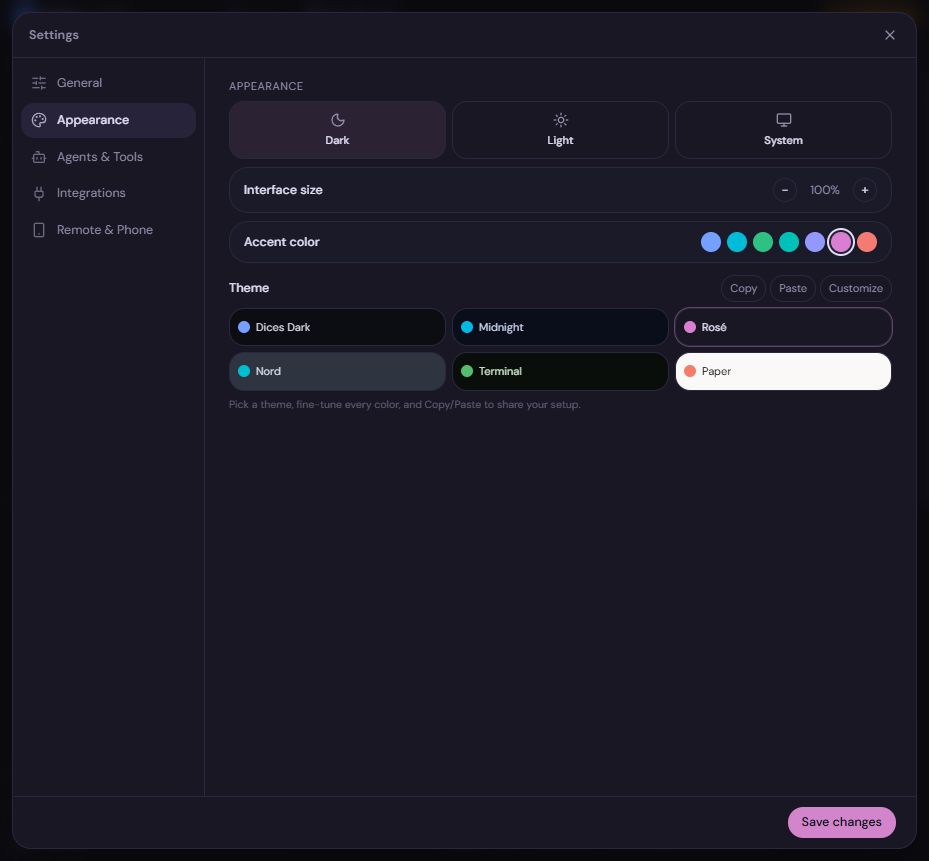
Where theming lives
Open Settings → Appearance. Settings opens as a redesigned, near-fullscreen panel with category navigation down the side, so Appearance and every other category is one click away.
Tip: Open Settings quickly with ⌘, (Ctrl , on Windows).
Prebuilt skins
A skin is a complete, ready-made look. Picking one re-colors the whole app live and sets the light/dark mode and accent to match. The built-in skins are:
| Skin | Feel |
|---|---|
| Dices Dark | The default dark theme |
| Midnight | Deep, high-contrast dark |
| Rosé | Warm, soft-toned |
| Nord | Cool, muted blues |
| Terminal | Classic terminal aesthetic |
| Paper | Light, paper-like |
Click a skin and the change applies instantly across the entire interface — no reload, no restart.
Customize every color
Beyond the skins, Customize gives you a color picker for every surface and text token in the app, so you can dial in an exact look. Tokens you can recolor include:
- Background — the app’s base color
- Panels — chat, terminal, and other surfaces
- Borders — dividers and outlines
- Muted text — secondary, lower-emphasis text
- Hover surface — the highlight shown on hover
- Sidebar — the navigation rail
- …and more
Each change previews live, so you can see the result as you adjust.
Note: Start from the prebuilt skin closest to what you want, then use Customize to tweak individual tokens. It’s faster than building a theme from scratch.
Accent color, interface size, and mode
Alongside the per-token colors, Appearance gives you three quick global controls:
- Accent color — choose from accent presets to set the app’s highlight color.
- Interface size — zoom the whole interface up or down for comfort or for higher information density.
- Dark / Light / System — pick a fixed mode, or System to follow your OS appearance.
Copy / paste themes (JSON)
Your theme is portable. Using Copy / Paste you can:
- Export your current theme as JSON — copy it out to save or share.
- Import a theme by pasting JSON back in.
This makes setups shareable: hand your JSON to a teammate (or paste one you found) and get the exact same look.
{
  "name": "My Dices theme",
  "mode": "dark",
  "accent": "#7c5cff",
  "tokens": {
    "background": "#0e0e12",
    "panel": "#16161c",
    "border": "#26262e",
    "mutedText": "#8a8a96",
    "hoverSurface": "#1d1d25",
    "sidebar": "#101016"
  }
}
Tip: Export your theme before experimenting. If you don’t like where your tweaks end up, paste the saved JSON back in to restore it instantly.
Where to go next
- Set up your panels in Workspace & layouts.
- Browse the Keyboard shortcuts reference — including ⌘, to jump straight back to Settings.