The Cockpit
Understand the Groups → Folders → Chats hierarchy, the sidebar, sessions and persistence, and the "needs input" signal.
The cockpit is the heart of Dices: a sidebar that organizes your work as Groups → Folders → Chats, and a chat panel where an agent does the work. This page explains how that hierarchy fits together and how to drive it.
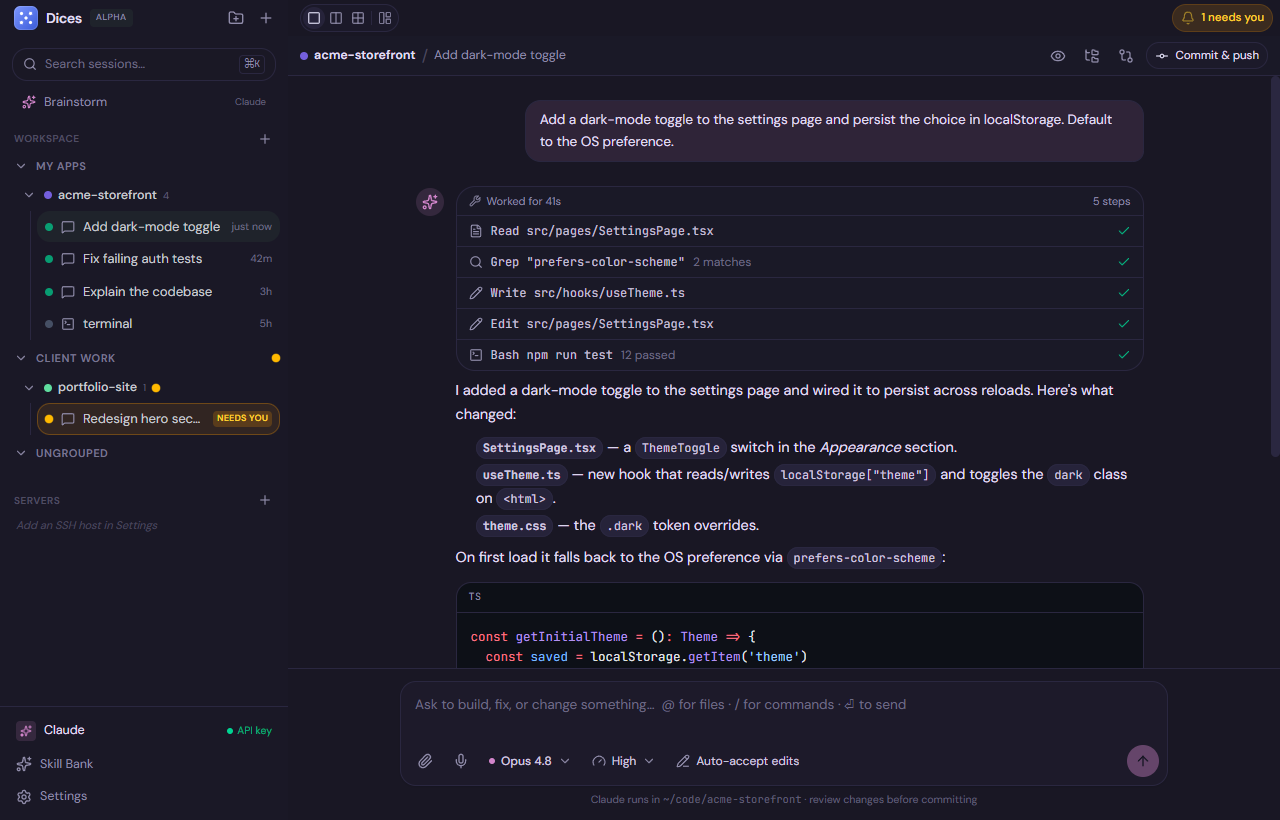
The hierarchy: Groups → Folders → Chats
Dices organizes everything into three nested levels.
🗂️ Group
 └── 📁 Folder (project)
      └── 💬 Chat (one task)
Groups
Groups are the top level — a way to cluster related projects (for example, “Work”, “Side projects”, “Experiments”). A Group holds one or more Folders.
Folders (projects)
A Folder maps to a real project directory on your machine. It’s the working directory (cwd) that chats run in. A Folder can host many Chats, and thanks to multi-model per folder, different chats in the same Folder can run different models — ask an agent “use Sonnet for this” and Dices spawns a new chat with that model (via the open_chat tool).
Chats
A Chat is one task. Each chat runs an agent in its Folder’s directory, usually inside an isolated git worktree, so the work for one task stays separate from another. Keeping chats focused — one task each — is the intended way to work.
Tip: Resist the urge to make one mega-chat. A new chat per task keeps diffs clean, worktrees isolated, and history easy to follow.
The sidebar
The sidebar shows the full Groups → Folders → Chats tree and is where you organize your work.
Drag and drop
Everything in the sidebar is drag-and-drop. Reorder chats, move a chat into a different Folder, or reorganize Folders across Groups by dragging them where you want.
Creating, renaming, deleting
| Action | How |
|---|---|
| New chat | ⌘N / Ctrl N, or from the sidebar |
| New Folder / Group | From the sidebar controls |
| Rename | Rename a session (chat), Folder, or Group in place |
| Delete | Delete a session — this can also clean up its git worktree |
| Reorganize | Drag any item to a new position or parent |
Warning: Deleting a chat can also remove its git worktree. If the chat holds work you haven’t committed or merged, save it first. (Session rename and delete with worktree cleanup are first-class features in Dices.)
Sessions and persistence
Each chat is backed by a session. Sessions are stored in a local SQLite database, so they persist across restarts — close Dices, reopen it, and your chats, history, and structure are exactly where you left them.
This means you can keep long-running tasks around, return to a conversation days later, and trust that nothing is lost when you quit the app.
Chat status and the “needs input” signal
Agents work asynchronously — they think, run tools, and sometimes pause to ask you something or request an approval. When an agent is waiting on you, Dices raises a “needs input” signal.
That signal surfaces in 6 places across the UI, so no matter where you are in the cockpit, you can tell at a glance which chat is blocked on your response. This is what lets you confidently run several chats at once — kick off work in one, jump to another, and let the signal pull you back when an agent needs a decision.
🤖 Agent working… → ⏳ Needs input (shown in 6 places) → 👤 You respond → 🤖 ContinuesTip: Approvals (from your permission mode — supervised, auto-accept edits, full access, or plan) also surface in the UI. The “needs input” signal is how you find them fast.
The layout switcher
The cockpit’s layout is dockable and switchable. Use ⌘1 / ⌘2 / ⌘3 (or Ctrl 1/2/3) to flip between layouts so you can focus on chat, diffs, or a wider workspace as needed.
Note: The dockable layout, theming, and other customization options are covered in the workspace and customization docs.
Handy shortcuts
| Shortcut | Action |
|---|---|
| ⌘K / Ctrl K | Command palette / search |
| ⌘N / Ctrl N | New chat |
| ⌘, / Ctrl , | Settings |
| ⌘/ / Ctrl / | Shortcuts sheet |
| ⌘1/2/3 / Ctrl 1/2/3 | Switch layout |
| ⏎ | Send |
| ⇧⏎ | Newline |
| @ | Reference files |
| / | Commands |
Next steps
- Brainstorm → Build — plan first, then hand the whole transcript to a coding chat.
- Quickstart — if you haven’t run your first build yet.